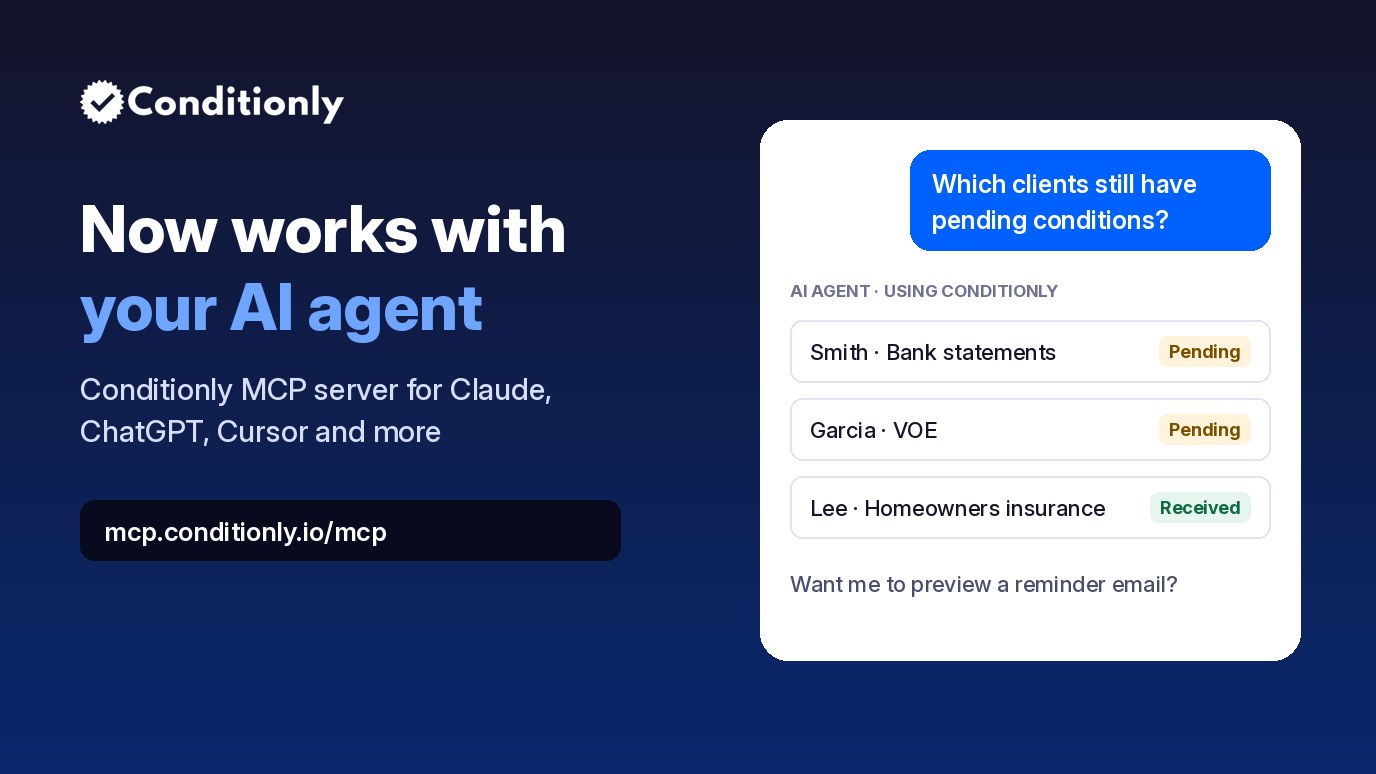
Connect your Conditionly pipeline to Claude, ChatGPT, Cursor and other AI assistants. Check conditions, update statuses, preview condition-request emails and run income calculations from your chat.
Conditionly now has an MCP server. If you use an AI assistant like Claude, ChatGPT or Cursor, you can connect it to your Conditionly pipeline and ask questions or get work done in plain English: which files still have open conditions, what a borrower still owes, whether a reminder email actually got delivered, and more.
The server lives at https://mcp.conditionly.io/mcp. Full setup steps for each app are on the Conditionly MCP page.
What is MCP?
MCP (Model Context Protocol) is an open standard that lets AI assistants use outside tools in a consistent way. Instead of copying data out of Conditionly and pasting it into a chat, the AI can look things up and take actions in your account directly, using tools the Conditionly server provides.
What your AI can do with Conditionly
- Pipeline and clients: list and search clients, open a full client file, add new clients, update dates, notes and loan officers, and pull the headline numbers from your Pipeline dashboard.
- Conditions: see what each borrower still owes, add conditions, mark them received or reopen them, and apply your standard condition set to a new file.
- Condition-request emails: preview the exact email a client will receive, then send it to one client or up to 50 at once. The AI can check sent-email history and delivery status first, so nobody gets chased twice in a row.
- Income calculator: work out qualifying monthly income from salary, hourly, overtime, bonus, fixed and self-employed income using the Income Calculator's own rules, and save the worksheet to a client.
- Team tasks: create internal follow-up tasks, assign them to teammates and mark them done.
- Templates: manage your reusable condition list and your email templates.
Example prompts
- "How is my pipeline doing this week?"
- "Which clients still have pending conditions, and what's missing on each?"
- "Mark the Smith file's W-2s and bank statements as received."
- "Preview a reminder email for the Garcia file, but don't send it yet."
- "Have I emailed the Johnson file in the last three days? Did it get delivered?"
- "Create a task for Dan to call the Garcia employer about the VOE."
How to connect
Every app uses the same URL: https://mcp.conditionly.io/mcp. When you connect, you're sent to Conditionly to sign in and approve access. There's no API key to copy.
- Claude: Settings → Connectors → Add custom connector, paste the URL, then click Connect and sign in.
- ChatGPT: turn on Developer mode under Settings → Apps & Connectors → Advanced, then create a connector with the URL and OAuth. Custom connectors depend on your ChatGPT plan.
- Cursor: add a "conditionly" entry with the URL to your
mcp.json, then sign in from Cursor's MCP settings.
- Claude Code: run
claude mcp add --transport http conditionly https://mcp.conditionly.io/mcp, then use /mcp to sign in.
Copy-and-paste snippets for each one are on the MCP setup page.
Security and control
- OAuth sign-in: your AI app gets an access token after you sign in to Conditionly and approve access. It never sees your password.
- Same access you already have: the AI acts as the account you signed in with. Team members only reach the sections their page access already allows.
- Confirmation before sending or deleting: sending a condition-request email and deleting a client both require an explicit confirmation step, and the AI is told to show you an email preview before sending. Sent emails can't be recalled, so review before you approve.
- Disconnect any time: remove the Conditionly connector from your AI app whenever you want.
Get started
Already a Conditionly user? Head to the MCP page, copy the server URL and connect your AI in a couple of minutes. New to Conditionly? Start your 7-day free trial, then connect.